
Mojimix works as a keyboard, so you can send stickers inside any messaging app. Enable it once, then switch to it whenever you want to say something with a bit more culture.
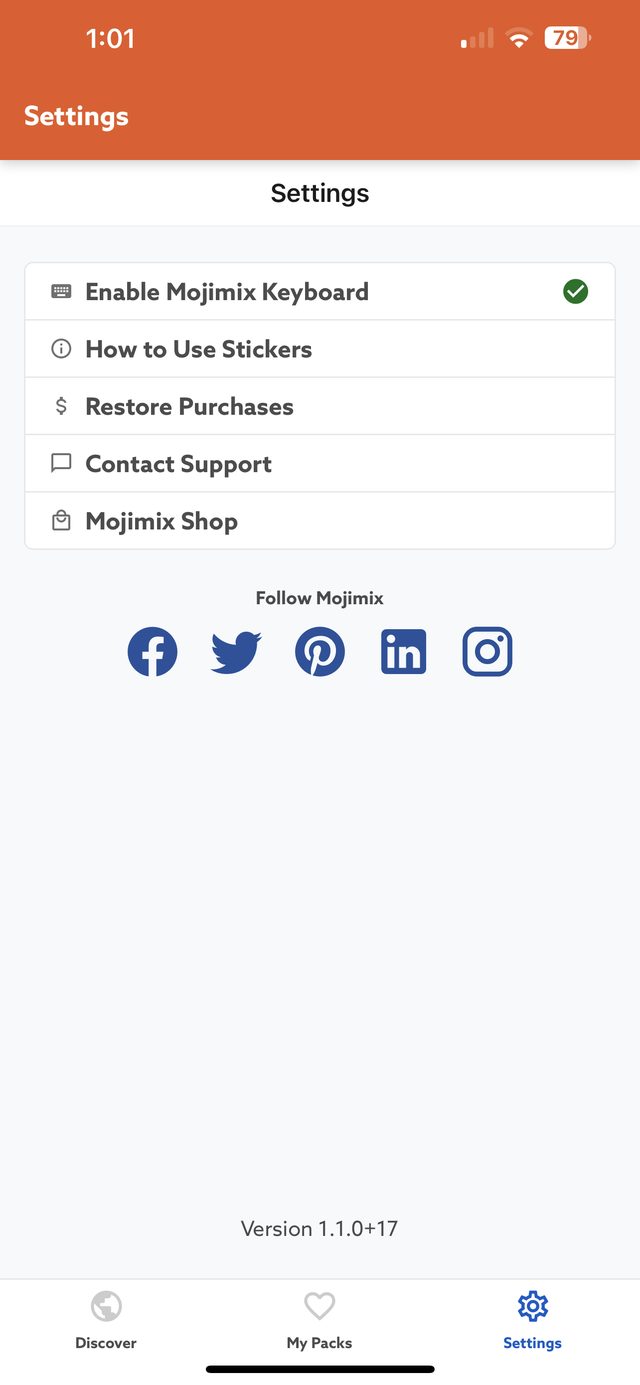
The quickest route on either platform is inside the app itself: open Mojimix, go to the Settings tab, and tap Enable Mojimix Keyboard. It takes you straight to the right screen. The steps below are the manual route.
Android
- Install Mojimix from the Google Play Store and open it once.
- Open Settings, then General management.
- Tap Keyboard list and default.
- Turn on Mojimix Keyboard. Android warns you that a keyboard can see what you type — this notice appears for every third-party keyboard.
- Tap Default keyboard and choose Mojimix Keyboard to use it everywhere. Skip this if you would rather switch to it only when you want a sticker.
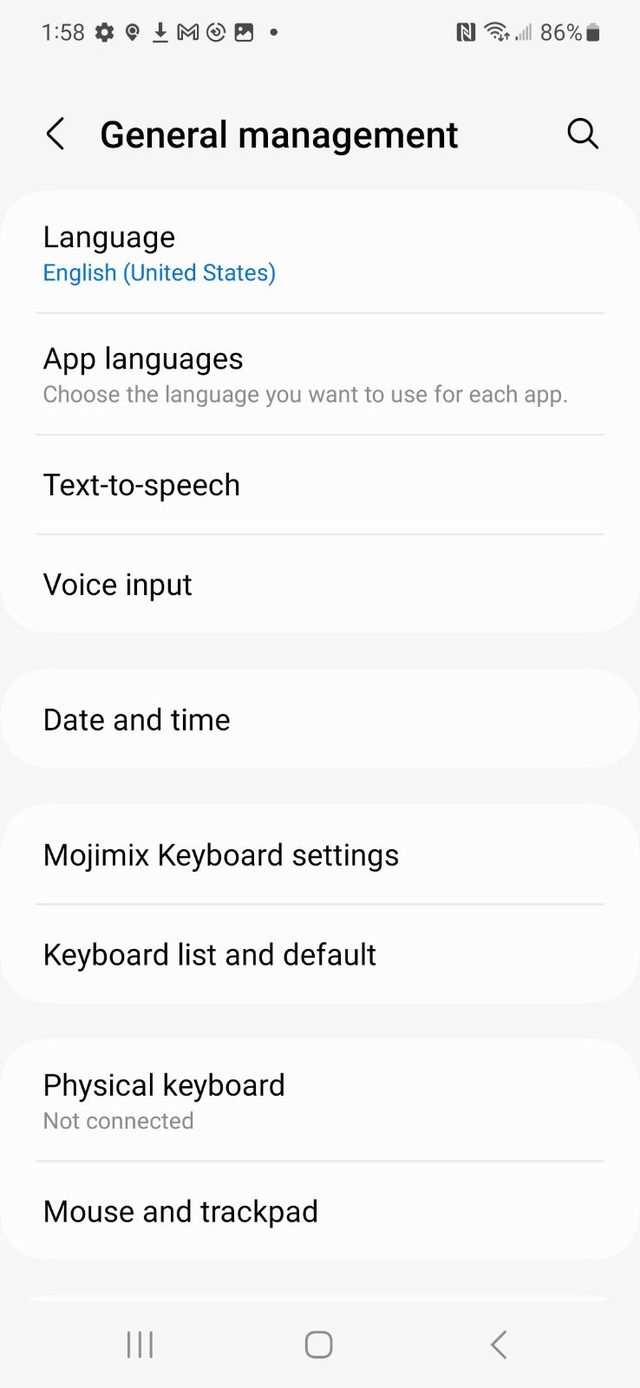
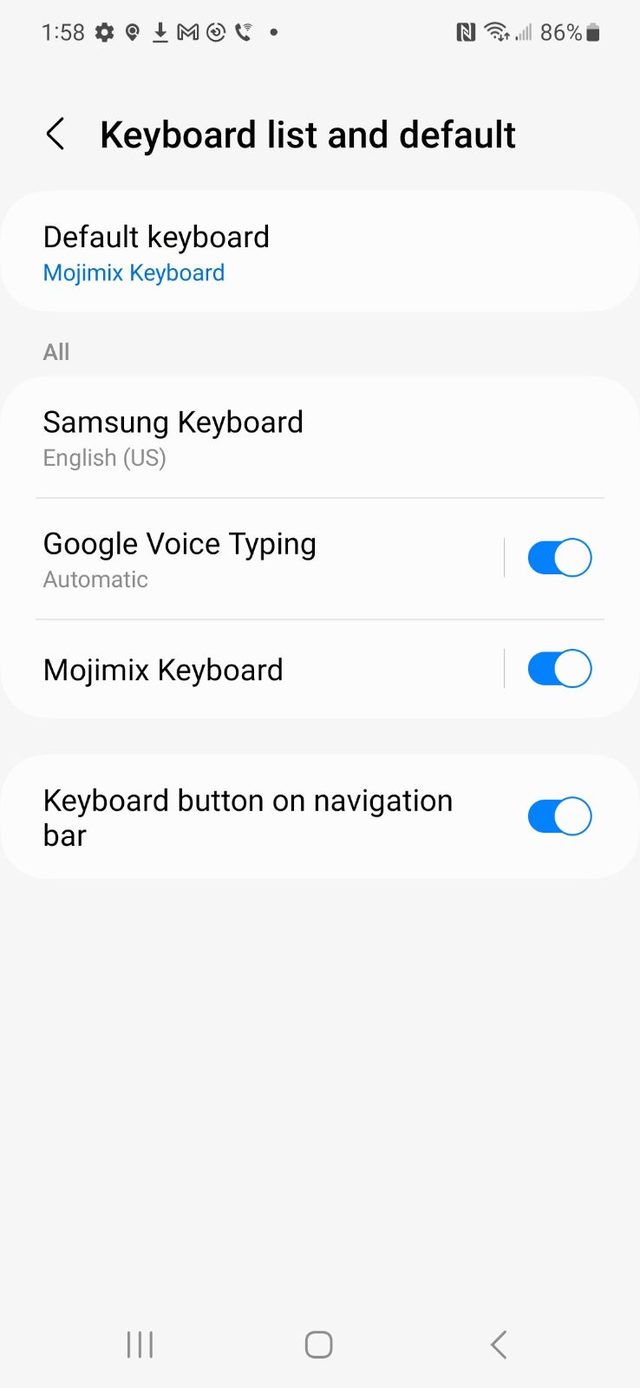
Steps 2 and 3 follow Samsung’s Settings app. On other Android phones the same screen is usually under Settings → System → Languages & input → On-screen keyboard.
Switching to it in a chat
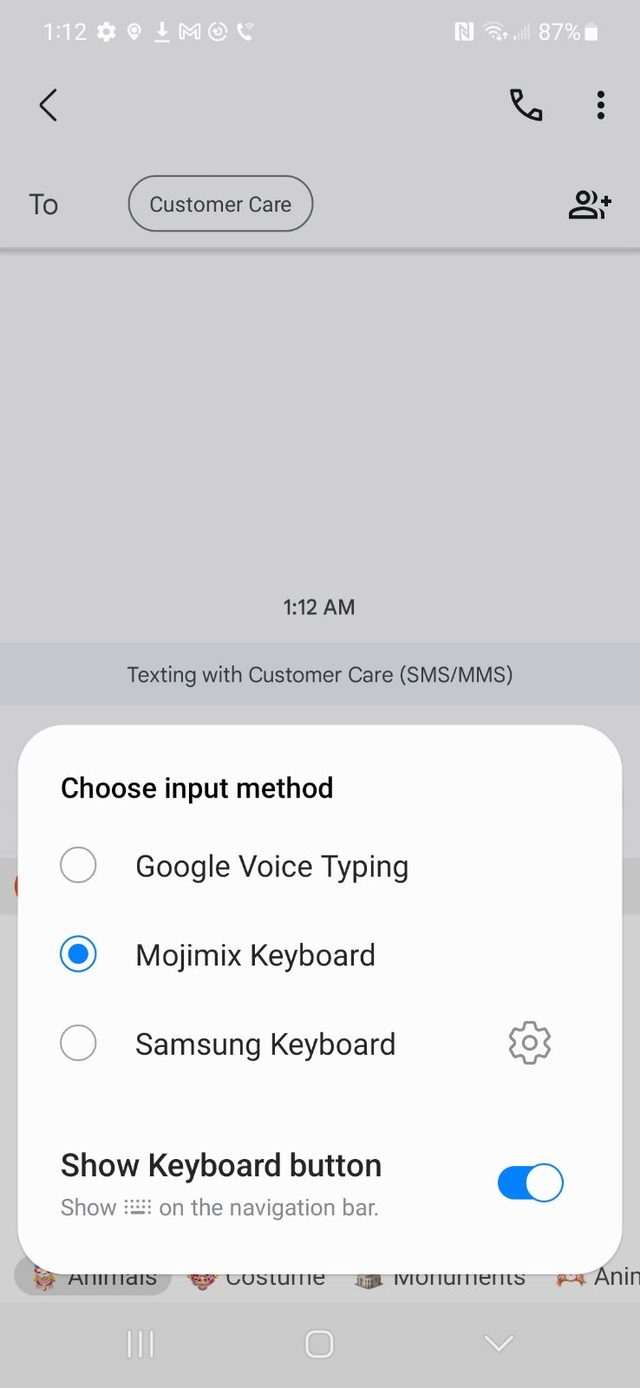
Open any conversation and tap the keyboard button on the navigation bar, then choose Mojimix Keyboard under Choose input method. If you cannot see that button, turn on Keyboard button on navigation bar on the same Keyboard list and default screen.
iPhone and iPad
- Install Mojimix from the App Store and open it once.
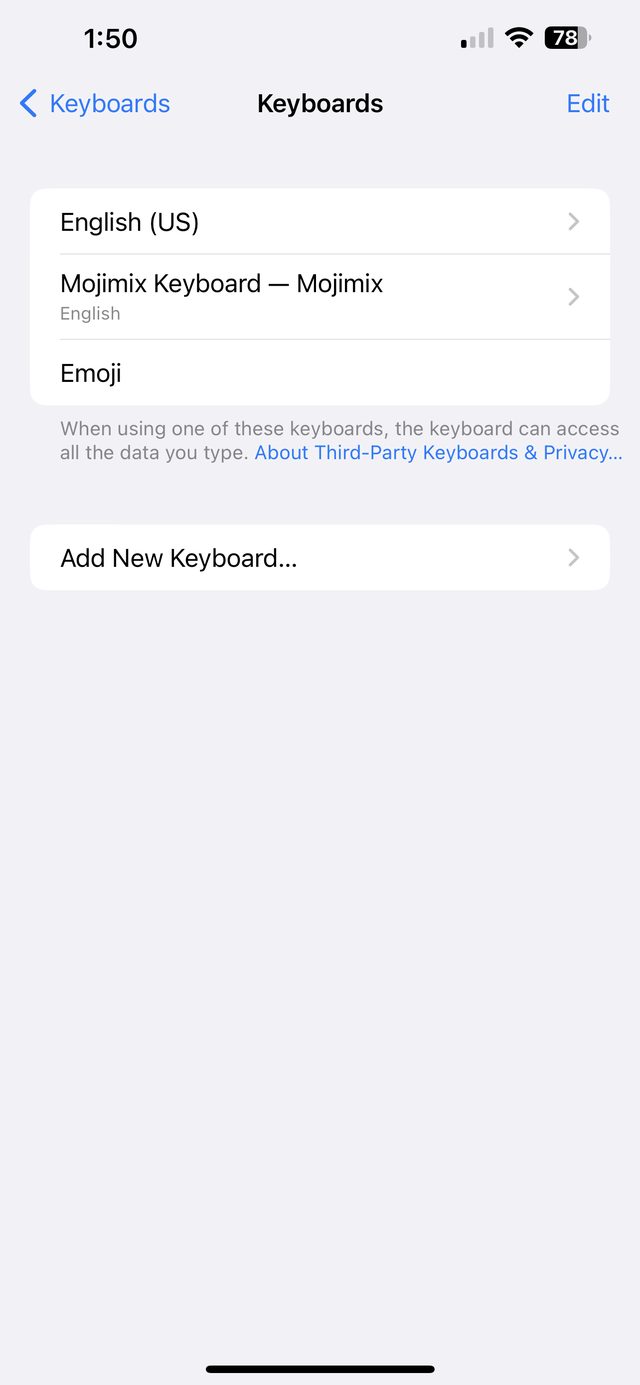
- Open Settings, then General, then Keyboard, then Keyboards.
- Tap Add New Keyboard… and choose Mojimix under Third-Party Keyboards.
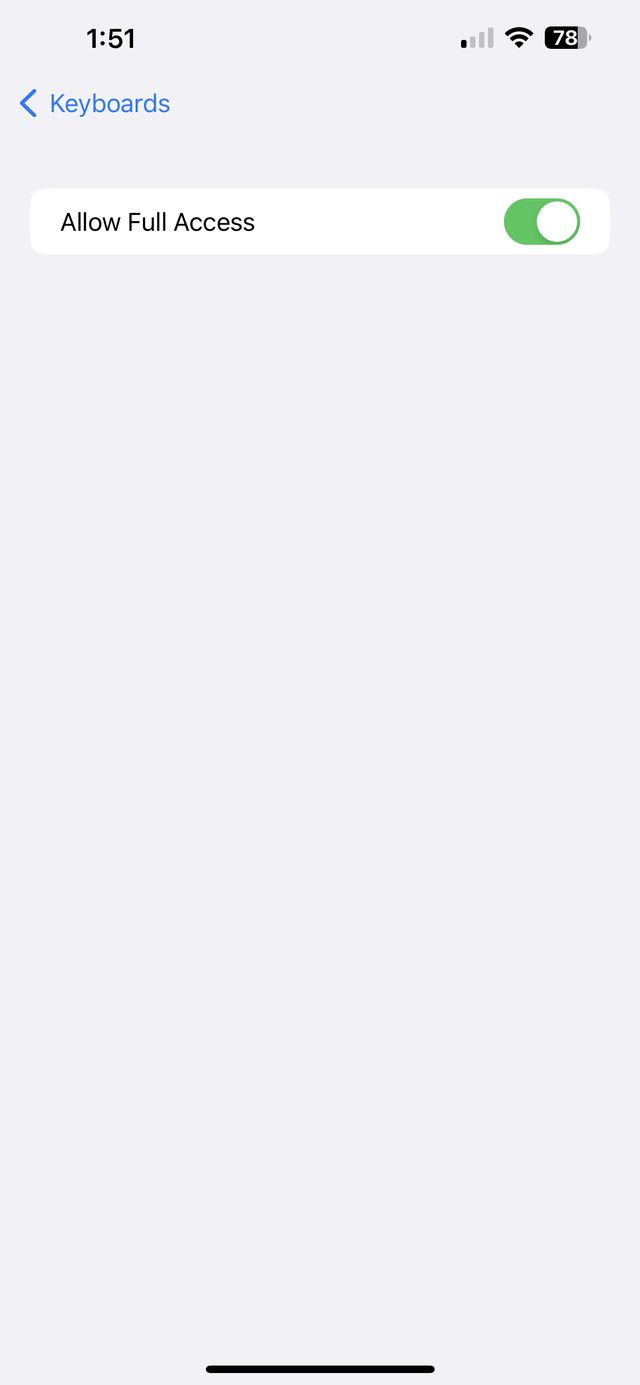
- Tap Mojimix Keyboard in the list and turn on Allow Full Access.
About Allow Full Access. Mojimix needs this to load and send sticker images. iOS shows a warning because the setting lets a keyboard send what you type outside the app — that warning is the same for every third-party keyboard, and it is worth reading. Mojimix does not record what you type; what the app does collect is set out in our Privacy Policy.
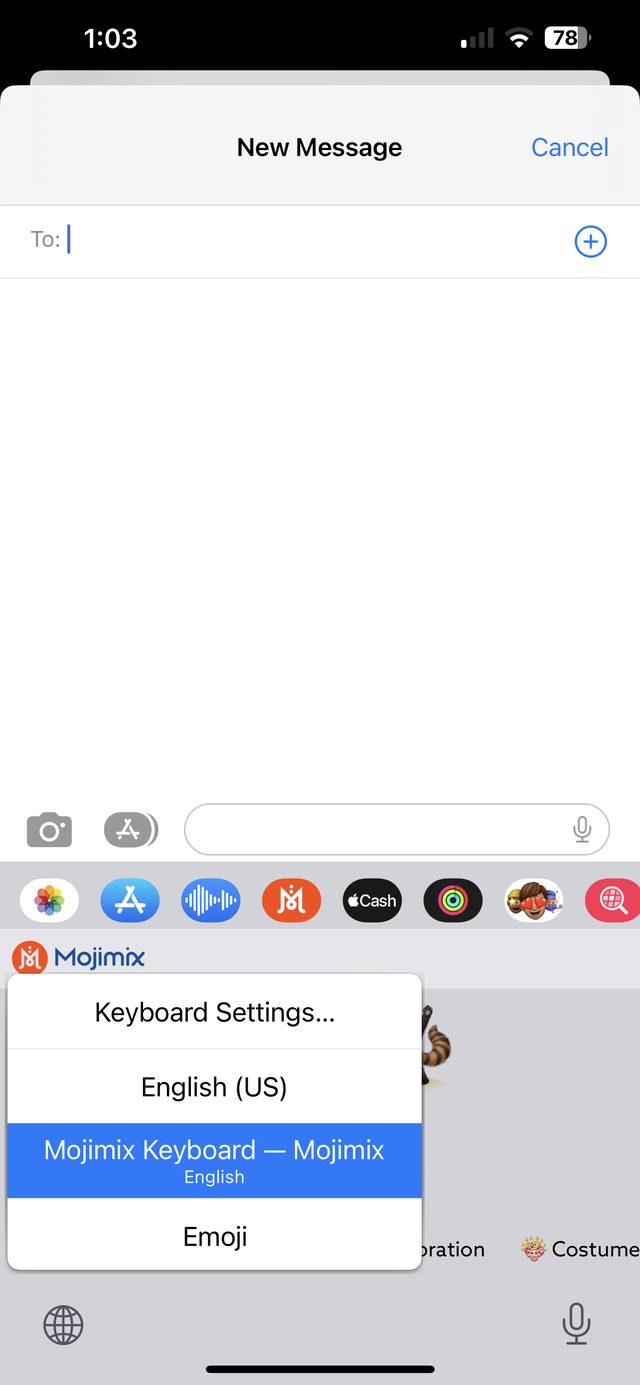
Switching to it in a chat
Open any conversation and press and hold the 🌐 globe key at the bottom of the keyboard, then choose Mojimix Keyboard.
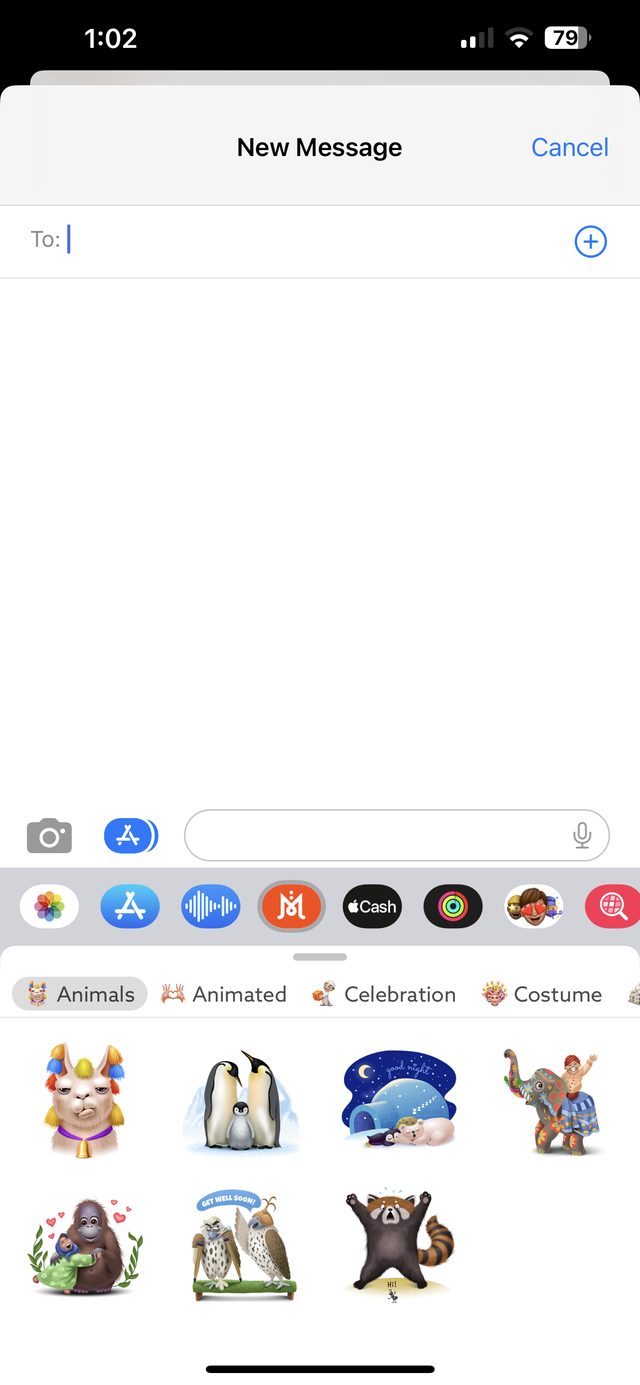
In Messages, without switching at all
Mojimix also installs as an iMessage app. In Messages, tap the Mojimix icon in the app row just above the keyboard to browse packs and drop a sticker into the conversation — no keyboard switching needed.
Sending a sticker
With Mojimix open, browse the pack tabs along the bottom — Animals, Animated, Celebration, Costume, Monuments and more. Tap a sticker to drop it straight into your message.
Not seeing the keyboard?
- Make sure you have opened the Mojimix app at least once after installing it. Both Android and iOS only register a new keyboard after its app has run.
- Check that Mojimix Keyboard is switched on in your keyboard list — being installed is not the same as being enabled.
- On iPhone, check that Allow Full Access is on. Without it the keyboard loads but the stickers will not appear.
- If it is enabled but still not appearing, restart your phone. This clears up most cases where a newly added keyboard does not show.
Still stuck? Email us and tell us your phone model and which step it fails at.